
Your first supplier invoice
Capture a supplier invoice, check what the AI read, and approve it so the bill lands in Payables and the lines land in Stock.
In this tutorial you take one real supplier invoice from paper to an approved bill. Along the way you learn how the review screen works, what the AI fills in, and what one approval changes.
Who this is for: managers and anyone who handles supplier paperwork.
You will need: one supplier invoice, as a photo, a PDF or a scan. About ten minutes.
Step 1. Capture
- Open Inbox in the sidebar.
- Click Add documents. You have three choices:
- Upload a file for a PDF, JPEG, PNG or WebP you already have. - Use camera on a phone or tablet to photograph the paper invoice. - Save for later upload when the connection is poor. The capture waits on the device and uploads when the connection returns.
- Choose the invoice. A banner confirms the file was added.
The file is scanned for viruses first. If it fails, it goes to the Blocked list and cannot be previewed until it is cleared. See Handle a blocked file.
Step 2. Let the AI read it
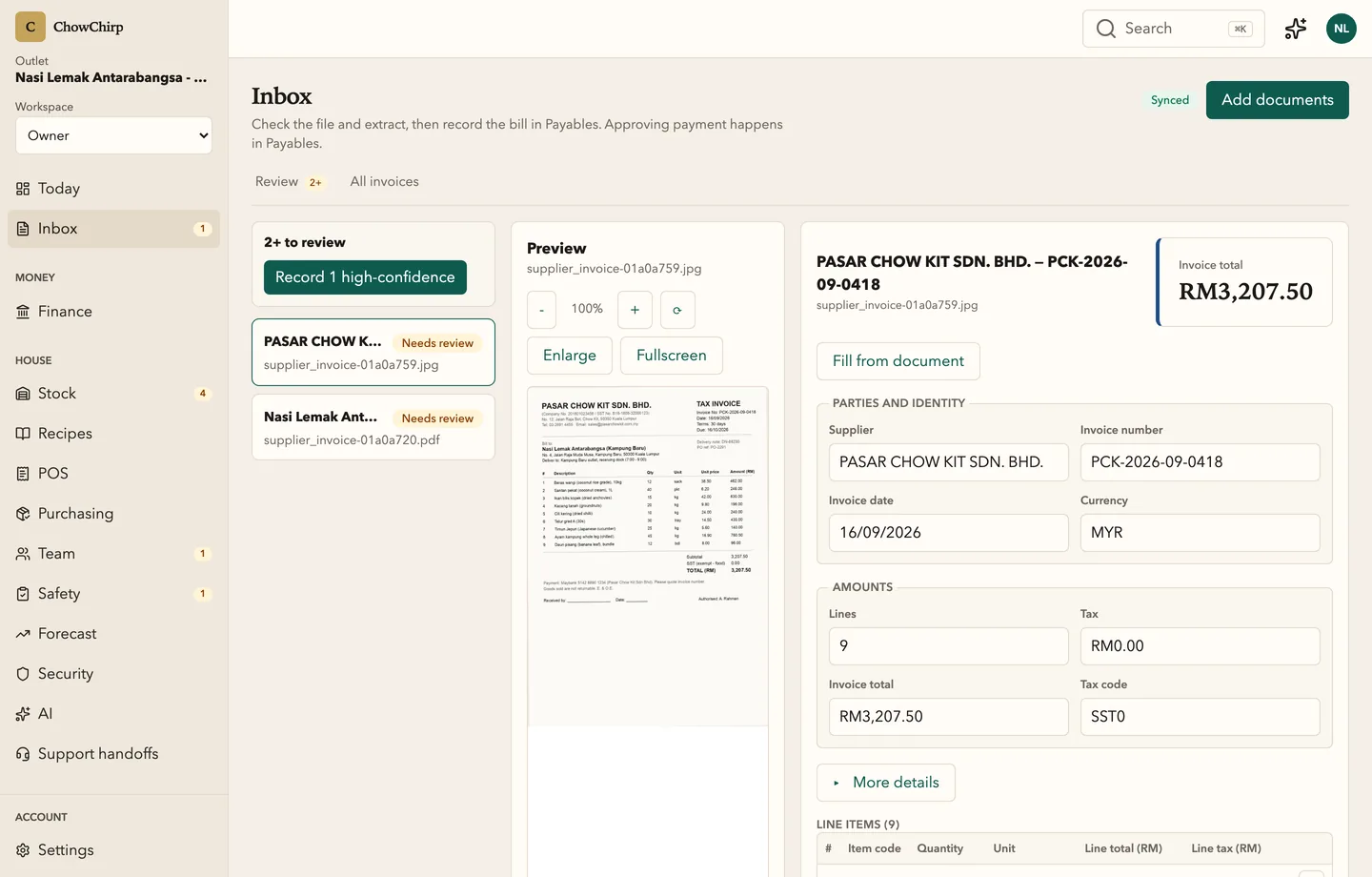
After the scan, the invoice appears in the Review list on the left with the label Needs review. Click it.
The screen has three panes:
| Pane | What it shows |
|---|---|
| Left | The queue of documents waiting for review |
| Middle | The invoice image or PDF, with zoom and fullscreen |
| Right | The form, filled in by the AI: supplier, invoice number, date, currency, tax, total and the line items |
Nothing has been accepted yet. The AI's reading is a draft for you to check.
Step 3. Check the fields that matter
Compare the form to the image. Work down in this order:
- Supplier. If the name is a variant the system has not seen, you can suggest an alias so the next invoice from the same supplier matches automatically.
- Invoice number and date. Dates follow the format printed on the invoice; the field tells you which one.
- Tax. Most food ingredients carry no service tax. Where SST applies, it appears as its own line with a code. Never fold tax into the total.
- Total. Must equal the lines plus tax.
- Line items. Check quantities and units. This is what updates your stock and supplier prices.
- Purchase order and delivery note references. Type them in if you have them. They drive the match status on the bill.
The keyboard is fastest: Tab moves between fields, the arrow keys move through the queue, + and - zoom the preview.
Step 4. Approve
Press Cmd+Enter or click Approve. If the form is invalid, nothing happens and the problem field is highlighted.
Approval records two things, in order:
- The extraction is approved as you checked it.
- The bill is posted to Payables.
If the second step fails for any reason, the document shows Approval incomplete in the Library with an Approve to Payables button. It is never lost.
Step 5. See what changed
- Money › Finance › Accounts payable now lists the bill with its due date and match status.
- House › Stock › Items shows the purchase lines against each item, and the supplier price history has a new point.
- Today no longer lists this invoice as waiting.
Open the bill and click the document reference. The original image is attached and will stay attached.
What you have learned
- Capture is on the spot; scanning and reading happen in the background.
- The AI drafts; you decide. Bulk accept is only offered for documents read with 95% confidence or higher.
- One approval posts to Payables and Stock in two recorded steps, and a half-finished approval is recoverable.
Next steps
- Review and approve an invoice for every option on the review screen.
- Map supplier name aliases so repeat suppliers match automatically.
- Invoice review fields for what each field means.
Updated 2026-09-16