
Record a supplier payment
Schedule a payment, build a payment run against the cash floor, pay in your bank, then record the settlement, dispute or write-off.
ChowChirp records payments; it does not move money. This guide shows the record-only flow from a due bill to a settled one.
Before you start: finance write access. Approving a payment run asks for your authenticator code.
Schedule a payment
- Open Money › Finance › Accounts payable › Invoices.
- Open the bill. Check the match status: Matched, Variance or Unmatched. Resolve a variance first: accept it as a manager, expect a credit note, or correct the purchase order or receipt.
- Choose Schedule payment and set the date.
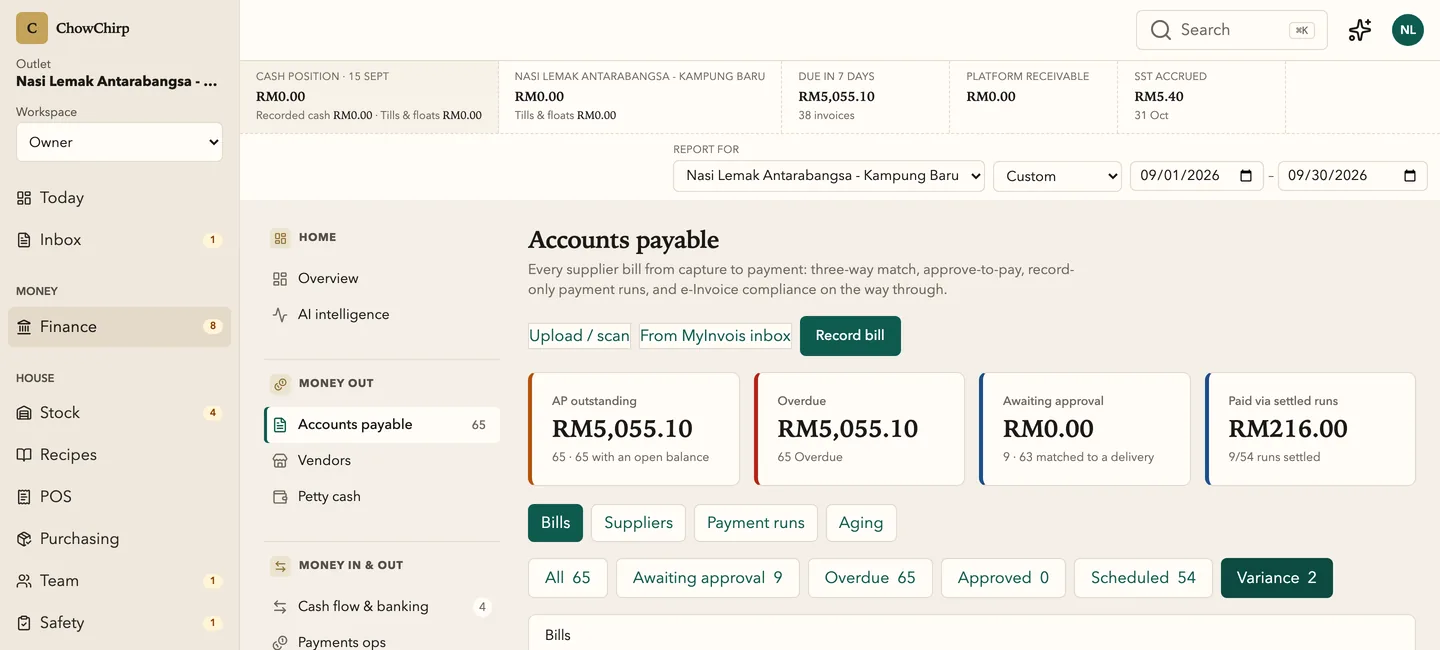
Build a payment run
- Open Payment runs and click Create payment run.
- Select the scheduled bills. The panel shows the projected cash position after the run against the outlet's cash floor.
- Approve the run with your authenticator code. The run is recorded; nothing is sent to a bank.
Pay in your bank, then record the outcome
- Make the transfer in your bank as usual.
- Back in ChowChirp, open the bill and choose Record settlement. Pick Settled, Disputed or Write-off and enter the reference.
- For a dispute, add the follow-up and resolve it later from the same bill. Write-offs need owner approval.
Apply a credit note
Open the credit note document, approve it, then on the bill choose Apply credit note and pick it. The bill's open amount reduces.
Early-pay decisions
Some bills show an early-pay banner with the discount and the cash-floor impact. Record your decision on the bill so the next reviewer sees it.
Related
Updated 2026-09-16