
Build and publish the weekly roster
Fill the week by station or person, clear the guardrail warnings, publish, and collect acknowledgements and swap requests.
The schedule is a weekly grid with a guardrail engine that checks Malaysian working rules as you fill it.
Before you start: team write access. People must exist in the team directory with an outlet and a station.
Open the week
- Open Team › Schedule.
- Choose the outlet and use the arrows to move to the week you are planning. Switch between By station and By person.
Add shifts
- Click a cell. The drawer shows who can cover that station and time, ranked, with any warnings against each name.
- Pick a person, set the times and any break, and save.
- Repeat. Coverage against the minimum shows under each day.
To go faster, use More:
- Copy last week copies the published week forward.
- Apply template applies a weekday, weekend, Ramadan or public-holiday pattern.
- Auto-fill proposes people for empty cells from availability and skills. You still review every cell.
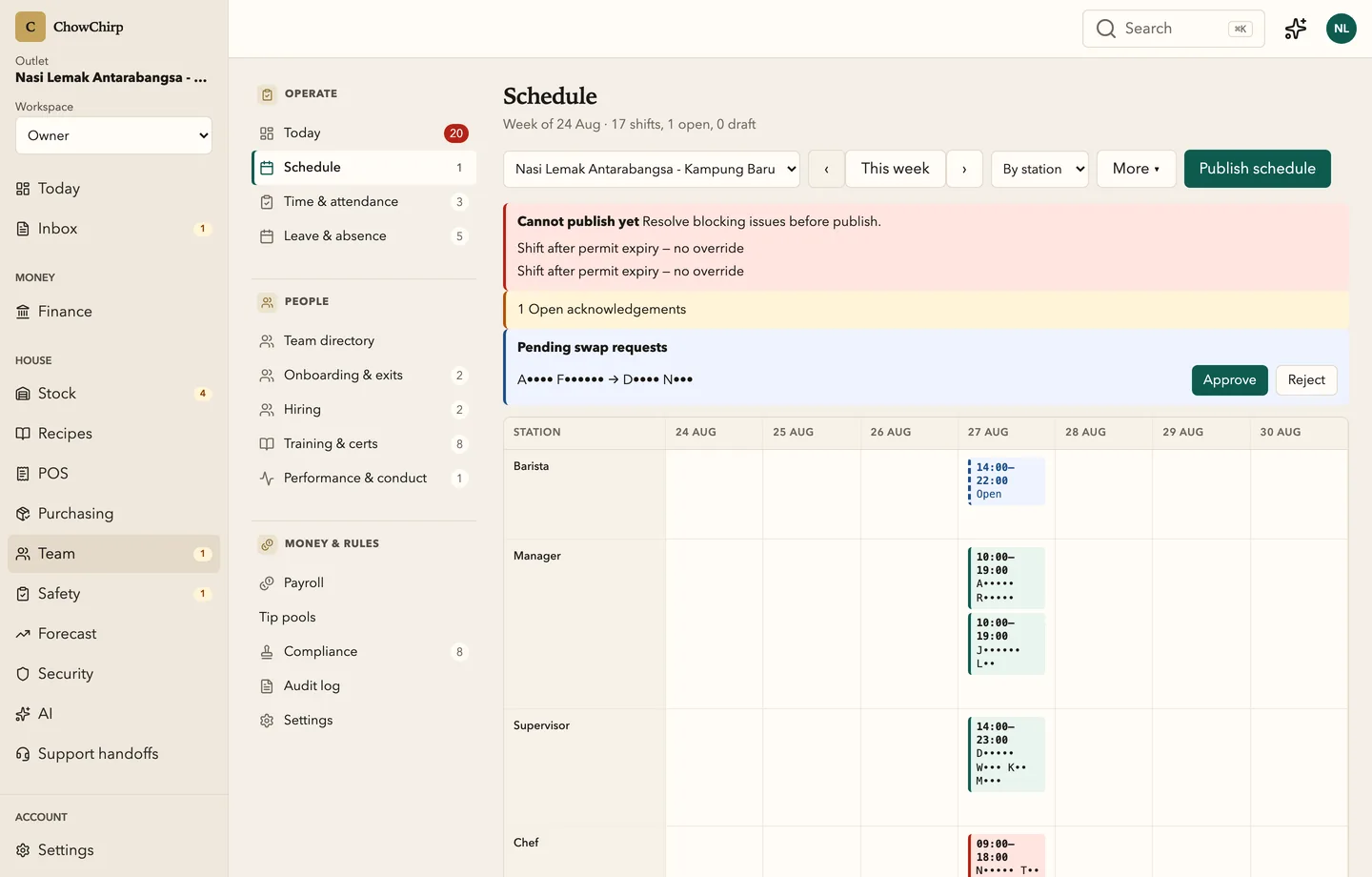
Clear the warnings
The guardrail engine flags:
| Warning | Type |
|---|---|
| Minor rostered after curfew | Warning |
| Shift longer thanhours | Warning |
| Week longer thanhours | Warning |
| Insufficient rest between shifts | Warning |
| Leave overlap | Warning |
| Cross-outlet float | Warning |
| Expired foreign-worker permit | Blocking |
| Missing or expired food-handler certificate at a food-contact station | Blocking |
| Blocked certification gap at the assigned station | Blocking |
A warning can be overridden with a written reason and the employee-agreed checkbox. A blocking issue prevents publishing until it is fixed. See Roster guardrail rules.
Publish
Click Publish schedule. Each person on the week gets an acknowledgement to confirm. Open acknowledgements show on the schedule until they are settled. Publishing again creates a new version; use Return to draft to unpublish.
Swaps and covers
Swap requests from staff appear at the top of the schedule with Approve and Reject. A no-show opens a ranked replacement list with a one-tap WhatsApp link to ask the replacement.
Lock and print
Lock week stops further changes once the week is running. Print roster produces a printable copy for the notice board.
Related
Updated 2026-09-16