
Getting started with ChowChirp
A first-week tour for owners and managers, from signing in to your first approved invoice, first stock count and first published roster.
This tutorial takes you through your first week. By the end you will have signed in, secured your account, found your way around, approved a supplier invoice, recorded an opening stock count and published a roster. Each step points to a longer guide if you want more.
Who this is for: owners and managers on a new ChowChirp account. Your onboarding team will already have loaded your outlets, suppliers, stock catalogue, recipes and team.
You will need: your login email and password, a phone with a camera, and three real supplier invoices.
1. Sign in and secure your account
- Open ChowChirp in a browser and sign in with your email and password.
- You land on Today, the owner dashboard. If your organisation has more than one outlet, the outlet you are looking at is shown at the top left.
- Open Settings › Security and enrol an authenticator app. Scan the code with Google Authenticator, Microsoft Authenticator or a similar app, then enter the six-digit code to confirm.
- Save your recovery codes somewhere safe.
2. Find your way around
The left sidebar is grouped by the work you do:
| Group | What lives there |
|---|---|
| Today, Inbox | The due-now list and the invoice review queue |
| Money | Finance: payables, petty cash, cash flow, P&L, SST, e-Invoice records, month-end close |
| House | Stock, Recipes, POS, Purchasing, Team, Safety, Forecast, Security, AI |
| Stations | Counter, Floor, Kitchen (only when installed) |
| Channels | Delivery, Guests |
| Account | Settings |
Two shortcuts save time everywhere:
- Cmd+K opens search and jumps to any screen.
- Cmd+J opens the AI advisor rail.
The Workspace selector at the top left reorders the sidebar for a role, for example Finance or Kitchen. It only changes what you see first. It never changes what you are allowed to do.
3. Approve your first supplier invoice
- Go to Inbox.
- Click Add documents › Upload a file and choose an invoice, or use the camera on your phone.
- Wait a moment. The file is scanned and the AI reads it. The invoice appears in the Review list marked Needs review.
- Click it. Check the supplier, invoice number, date, tax and total against the image in the middle pane. Fix anything that is wrong.
- Press Cmd+Enter or click Approve. The bill is recorded in Payables and the purchase lines in Stock.
Do this with all three invoices. The full guide is Review and approve an invoice.
4. Record the opening stock count
- Go to Stock › Opening balance.
- Walk one storage area at a time. For each item, enter the quantity you can see. The unit is shown beside each line; if you count in a different unit, enter the conversion.
- Submit the count. From now on, deliveries, approved invoices and sales adjust these balances, and every balance shows what it is based on.
More in Your first stock count.
5. Publish next week's roster
- Go to Team › Schedule and choose next week.
- Click a cell to add a shift. The drawer shows who can cover it, ranked.
- Watch the warnings. A yellow warning can be overridden with a reason. A red blocking issue must be fixed before you can publish.
- Click Publish schedule. Each person on the roster gets an acknowledgement to confirm.
More in Build and publish the weekly roster.
6. Read the dashboard every morning
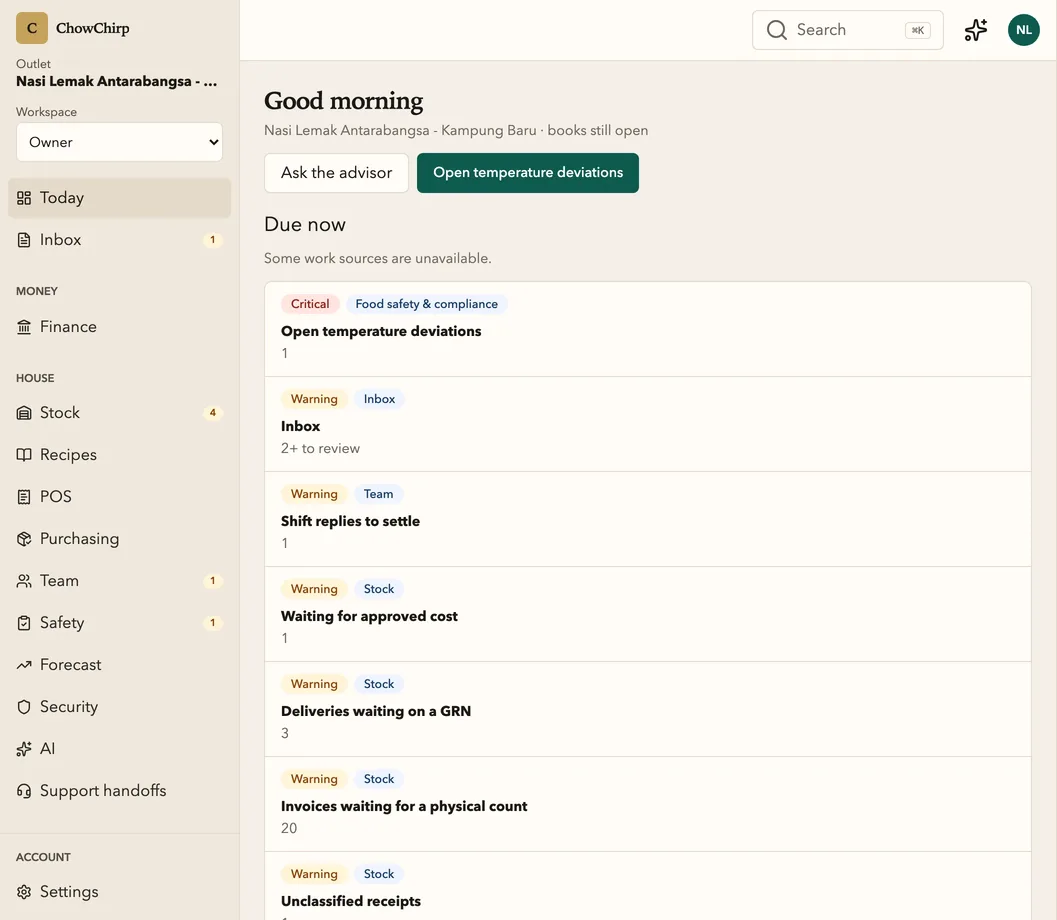
Today lists what needs a decision across every outlet, ranked by severity. Each row opens the screen that fixes it. Open a row, deal with it, come back. When the list is empty, you are done.
Every number on the dashboard is a link. Keep clicking and you reach the entry that produced it: the invoice photo, the count or the person. That trail is how you know a number is true. See How ChowChirp keeps numbers trustworthy.
What you have built
- A secured account with a second factor.
- Three approved bills in Payables, with their purchase lines in Stock and the images attached.
- An opening stock balance for every storage area.
- A published roster with acknowledgements.
- A morning habit: open Today, clear the list.
Next steps
Updated 2026-09-16